Are you looking to learn Office 2007 from scratch? The Microsoft Office website has an excellent resource for learning Word, Excel, Outlook and PowerPoint. Geared to the true beginner, this training walks you through Office 2007 programs step-by-step.
Last Topic
Tampilkan postingan dengan label Outlook. Tampilkan semua postingan
Tampilkan postingan dengan label Outlook. Tampilkan semua postingan
Microsoft Office 2007 Service Pack 2 Released
Users of Microsoft Office 2007 should check their Windows Update to receive the new Service Pack 2 that was released on April 28.
The new service pack has a long list of improvements to the Microsoft Office suite of products. For the complete list, check out this link (Excel file).
Some of the highlights of this release are as follows:
- Speed improvements to Microsoft Outlook
- The "Save as PDF" option has been implemented throughout the entire Office suite
- Support has been added for the ODF format (Open Document Format)
- Various bugs have been fixed
If you can't wait to grab Service Pack 2, go to this link to pick up the download.
Want IE Rendering in Firefox? Check out the IE Tab Addon for Firefox

Firefox has been and continues to be my Internet browser of choice. Unfortunately there are times where I run into a web page that only works in IE or loses its functionality in Firefox. A perfect example of this is with Outlook Web Access (OWA). In Internet Explorer, you are able to have the full functionality of the site, where in Firefox you receive a "lite" version of the same website.
Now, with the IE Tab Add-on, you will be able to get that full functionality back into your Firefox browser. All you have to do is follow these steps:
Now, with the IE Tab Add-on, you will be able to get that full functionality back into your Firefox browser. All you have to do is follow these steps:
- Go to the Firefox Add-ons page
- Click on Add to Firefox (Windows)
- Click on "Install Now"
- Restart Firefox
- Go to Tools and click on IE Tab Options
- Under the "Sites Filter" tab, enter in your OWA web address or whatever site you want to be rendered in Internet Explorer.
- Test it out!
What I Did Not Blog about While I Was at the MLA Conference
Sabtu, 25 Oktober 2008
Label:
Elections,
Excel,
Google Maps,
Microsoft Office 2007,
Newspapers,
Outlook,
Politics,
Voting
Yesterday, I returned from the MLA conference and caught up on my reading. Here are a few interesting posts about which I did not have a chance to blog earlier this week:
Microsoft has announced the spring 2009 release of Service Pack 2 (SP2) for Microsoft Office 2007. Microsoft is promising that SP2, scheduled between February and April 2009, will speed up Outlook and improve the charting function in Excel. If so, it will make a very good product event better.
This sounds cools, but I admit, it has limited applications: Blogger Amit Agarawal, has created a way to translate a latitude and longitude value into a street address on Google Maps. All you need to know is the the latitude and longitude where you are. Hm.
[via lifehacker]
As cities and states experiment with different types of voting machines, comes this unsettling report from The Princeton University Center for Information Technology Policy about security vulnerabilities that researchers have detected in the voting machines used by the New Jersey. According to the researchers, the machines can be completely compromised by replacing a single ROM chip — a task that they were able to complete in only seven minutes.
[via arstechnica.com]
I'm a news junkie, and Spreed:News sounds like a dream-come-true. According to lifehacker:
Microsoft has announced the spring 2009 release of Service Pack 2 (SP2) for Microsoft Office 2007. Microsoft is promising that SP2, scheduled between February and April 2009, will speed up Outlook and improve the charting function in Excel. If so, it will make a very good product event better.
This sounds cools, but I admit, it has limited applications: Blogger Amit Agarawal, has created a way to translate a latitude and longitude value into a street address on Google Maps. All you need to know is the the latitude and longitude where you are. Hm.
[via lifehacker]
As cities and states experiment with different types of voting machines, comes this unsettling report from The Princeton University Center for Information Technology Policy about security vulnerabilities that researchers have detected in the voting machines used by the New Jersey. According to the researchers, the machines can be completely compromised by replacing a single ROM chip — a task that they were able to complete in only seven minutes.
[via arstechnica.com]
I'm a news junkie, and Spreed:News sounds like a dream-come-true. According to lifehacker:
"Free speed-reading webapp Spreed:News lets you choose from a wide array of news sources and have their articles read to you in small clusters of words. Working from the principles that make for faster reading, you can scale the tool between 240 and 1500 words per minute, and set up an account to save your favorite sources — from Boing Boing to the New York Times and dozens more — for quick browsing."I haven't had the time to try it, yet, but if you do, let me know what you think.
Mouse-less Navigation in Office 2007
Keyboard shortcuts are one of my favorite things about Microsoft Office. I've always preferred using the keyboard shortcuts over the mouse; I don't have to take my hands off the keyboard that way, and my speed increases.
So, I was thrilled when I saw the great new keyboard shortcut layout in Office 2007. This feature overlays the keyboard shortcuts on top of your Office 2007 ribbon.
To activate the layout, hit the Alt key. The shortcut labels will be overlayed on the ribbon. Then, you can navigate simply by hitting the appropriate label on the keyboard. Navigation between the various tabs and functions becomes as easy as pressing the letters assigned!
 To de-activate the shorcut overlay, just hit the Alt key a second time.
This overlay will show up in all Microsoft 2007 Office products that have the ribbon interface.
So, I was thrilled when I saw the great new keyboard shortcut layout in Office 2007. This feature overlays the keyboard shortcuts on top of your Office 2007 ribbon.
To activate the layout, hit the Alt key. The shortcut labels will be overlayed on the ribbon. Then, you can navigate simply by hitting the appropriate label on the keyboard. Navigation between the various tabs and functions becomes as easy as pressing the letters assigned!

click for a larger view
This overlay will show up in all Microsoft 2007 Office products that have the ribbon interface.
Change the Color Scheme in Microsoft Office 2007
Feeling blue? How about silver?
Well, now you can change your color scheme in any Microsoft Office 2007 software to blue, silver, or black, using the Options command. (For this post, I will demonstrate in Word.)
First, click on the Office button in the top left corner, and then click on Word Options at the bottom of the pop-up menu.

Make sure you are under the Popular heading (on the left). Then look for Color Scheme. Click on the drop-down arrow next to the choices and select the color you want (blue, silver, and black).
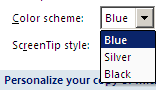
Click on OK at the bottom of the menu. Your new color scheme will appear immediately.
Well, now you can change your color scheme in any Microsoft Office 2007 software to blue, silver, or black, using the Options command. (For this post, I will demonstrate in Word.)
First, click on the Office button in the top left corner, and then click on Word Options at the bottom of the pop-up menu.

Make sure you are under the Popular heading (on the left). Then look for Color Scheme. Click on the drop-down arrow next to the choices and select the color you want (blue, silver, and black).

Click on OK at the bottom of the menu. Your new color scheme will appear immediately.
(For more tips on Microsoft Word and other Office products, enter the program name into the dialog box at the top left of this blog page, and click on Search Blog. You'll see what other tips the Tech Desk has to offer.)
Remove the Annoying Mini Toolbar in Microsoft Office 2007

Bad mini toolbar!
Have you been typing in Microsoft Word 2007, only to see a miniature toolbar randomly pop up and obstruct your viewing and typing?
That mini toolbar is a new feature in Office 2007. Many people, including myself, find it to be quite a nuisance.
To get rid of that toolbar, and free yourself from its ghost-like appearances, click on the Office button in the top left of your Word screen, go to Word Options, and un-check the Show Mini Toolbar on Selection option located under the Popular tab. Then click Ok and you're set -- no more annoying mini toolbar!
And, if you later decide you miss the toolbar you can always bring it back by rechecking the box.
And, if you later decide you miss the toolbar you can always bring it back by rechecking the box.

Note: The mini toolbar will show up in all Microsoft Office 2007 programs: Excel, Outlook, Powerpoint, etc. You will have to disable it through the same method above in each program, under Options located at the bottom of the Microsoft Button menu.